


Firmware Manager Guideline
Getting Started (Download und Basic Setup)
The racksnet® firmware manager offers a firmware update server (FUS) and an integrated syslog server. For this the following files are needed (if you have not received a link yet, please contact for this support@racksnet.com):
- RACKSNET_FIRMWARE_SYSLOG.mf
- RACKSNET_FIRMWARE_SYSLOG-1.vmdk
- RACKSNET_FIRMWARE_SYSLOG-2.iso
- RACKSNET_FIRMWARE_SYSLOG.ovf
Use it to create a new VM (deploy OVF template) on your ESX host. After the VM has been created, the general settings (network/DNS) must be set first. To do this, please proceed as described below:
a. The login for the Linux server is username: rackuser. The default password is: 123456
For the login of the Firmware Manager´s GUI, look here.
Please change the user’s password immediately, with the command: passwd
b. Under /etc/network/interfaces.d/eth0 you can change the IP of the server with an editor of your choice vim or nano. The changes are applied with the commands:
Example with nano:
sudo nano /etc/network/interfaces.d/eth0
auto eth0
iface eth0 inet static
address <Neue-IP-des-Servers>
netmask <Subnet-Mask-des-Servers>
gateway <gateway-IP-address>
dns-nameservers <dns-IP> <backup-dns-ip>
Press "CTRL + X" to exit from the editor and save the settings.
Save (Yes/no): Y
sudo systemctl restart networking.service
It is also possible to connect to the firmware manager via SSH (port 2222) if the IP has already been changed:
ssh racksuser@<IP> -p 2222
Open the Firmware Manager
You can access the Firmware Manager at: https://<IP>. Your default login is the e-mail: admin@customer.com. The default password is: 123456.
Please change the default user credentials after the first login!
Display the API Key
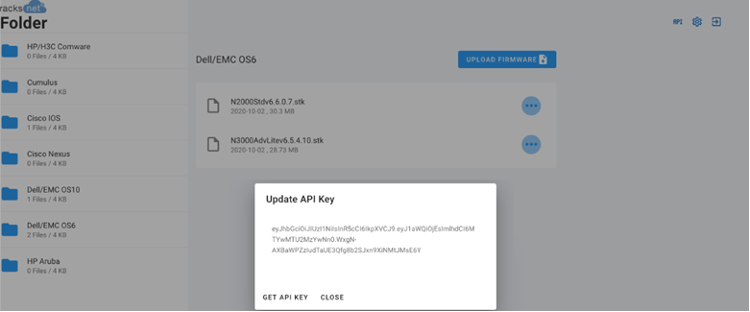
With a click on the API button you can display the current API Key. Afterwards click on "Get API Key" to renew it.
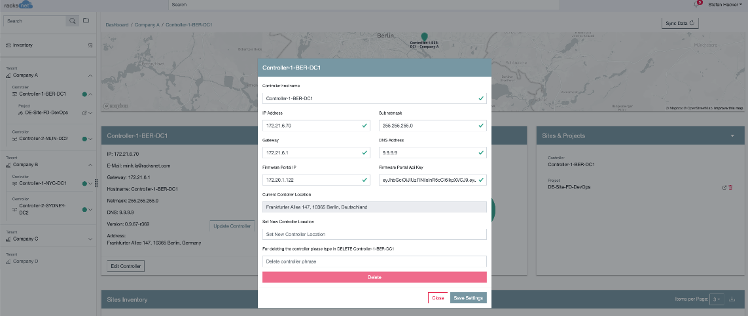
The API key as well as the IP address of the firmware manager must be stored in the app. Select the controller and "Edit Controller" to enter the key.
Access to Syslog Server
Under http://<IP>:8080 a GUI for the integrated syslog server is accessible. The default login is the E-Mail: admin@customer.com. The default password here is also: 123456
Please change the default user credentials after the first login!
TFTP/SFTP Changes
By default, the TFTP transfer path is set for the firmware updates, but the SFTP server can also be used if the network devices support this (please contact the network vendor for this).
The credentials for the integrated SFTP server are: username: rackuser and the password: racksnet.
Here you can change the password of the rackuser in the file /home/rackuser/container/sftp/users.conf. To apply the change, the container must be deleted and recreated with the commands:
docker rm -f sftp
docker run -itd --name sftp --restart always - v/home/rackuser/container/sftp/users.conf:/etc/sftp/users.conf:ro -v/home/rackuser/firmware:/home/rackuser/firmware -p 22:22 -d atmoz/sftp
docker exec sftp bash -c "echo 'Ciphers chacha20- poly1305@openssh.com,aes256-gcm@openssh.com,aes128- gcm@openssh.com,aes256-ctr,aes192-ctr,aes128-ctr,aes256-cbc' >>/etc/ssh/sshd_config"
docker restart sftp